
You finally find a well-written article that perfectly explains a concept you have been trying to understand. The information is exactly what you need. You scroll through the page, ready to save it for later or use it in your research, but you quickly realize something frustrating: the webpage is filled with navigation menus, ads, related-post widgets, and newsletter pop-ups. None of that is useful to you — you simply want the article itself.
This is an everyday problem for students, researchers, writers, and anyone who regularly uses online content. You often need to isolate the main article, blog post, or tutorial from every other element on the page. The process of manually copying the text, pasting it into a document, and then cleaning up the formatting is tedious and often damages the structure of the original content. Being able to cleanly extract the main content from any webpage would save time and make your collected research far more organized.
This article explores practical ways to separate core content from webpage clutter. You will learn about the limitations of common methods, discover when to use different extraction techniques, and understand how to build a more efficient workflow for saving the content you truly need.
Why Webpages Are So Difficult to Save
Webpages are built from more than just the article you want to read. They are complex documents structured with HTML, CSS, and JavaScript, which means they contain many ingredients that serve different purposes. When you try to save an article “as-is” through your browser, you almost always capture elements you do not want.
The core culprits behind the clutter include:
- Global navigation menus that list every section of a website
- Sidebars filled with ads, sale banners, and email signup boxes
- Related article widgets that appear at the bottom of the page
- Headers and footers containing logo images and legal links
- Author bios and social media share icons
The actual main content — the article body, headings, and key images — often occupies less than half of the total page code. This is manageable if you only need to skim the article online. But the situation changes when you need the content for offline reading, research, or redistribution. Suddenly, you need the main content in a clean, usable format, and the extra clutter becomes a genuine obstacle.
Understanding how pages are structured is the first step. The second step is choosing the right extraction method so that the file you end up with is clean, accurate, and worth keeping.
Common Methods for Isolating Content
There are several ways to get a clean copy of a webpage’s main article, but every method comes with its own set of trade-offs. Depending on your technical skills and your end goal, some options will work better than others.
Manual Copy-and-Paste
This is the most direct approach. You highlight the article text, press Ctrl+C (or Cmd+C on a Mac), and paste it into a Word processor or Google Doc. It is simple, but it comes with significant downsides.
Manual copying rarely captures images well, sometimes leaves out important captions, and almost always strips away the formatting that made the article readable in the first place. Headings can end up looking like regular paragraphs, and links are often broken. For a short article, this method is acceptable. For a multi-page research report, it is impractical and error-prone.
Browser Print-to-PDF
Every major browser has a “Print” function that allows you to “Save as PDF.” This method is much better than manual copying because it generally preserves the layout, images, and formatting. Modern browsers even offer a “Reader Mode” before printing, which helps remove some clutter. However, the result is not always perfect. Some websites load content dynamically, so article images or text blocks can be missed during the rendering process. The generated PDF may also still include headers, footers, or other page furniture that survive the print preview.
Web Clipper Extensions
Many note-taking apps and research tools offer browser extensions designed specifically for saving web content. Tools like Evernote Web Clipper, Pocket, and Notion’s Web Clipper can extract the main article and save it to your account. These tools often do an excellent job of detecting the primary content block. The limitation is that they tend to lock content inside their own proprietary formats. If you need a standard PDF document that you can edit, send, or print, you will have to export the content out of these applications first, and that export process can sometimes undo the original clean extraction.
Understanding Content Extraction Technology
Given the limitations of manual and browser-based methods, many users turn to dedicated content extraction tools. These tools use algorithms to analyze a webpage’s HTML structure and identify the “main content” — the part of the page that contains the meat of the article.
No single extraction method works perfectly on every website. The internet is too diverse for that. Some sites have unusual layouts, while others embed their articles inside complex interactive apps. However, most extraction tools approach the problem in similar ways. They look for certain signals, such as the presence of heading tags, the ratio of text to links, the length of paragraphs, and the positioning of content within the page’s overall layout.
If you have ever used a “Reader Mode” in your browser, you have used this kind of algorithm. The main reason to use a dedicated extraction tool over a browser’s reader mode is the quality of the output file. A browser reader mode is designed to make text easy for you to read on screen. It is not necessarily designed to produce a clean PDF file that is suitable for archiving, printing, or formal research documentation.
For many people, the solution is to use a tool that is specifically built to manage the conversion of web content to documents. If you need to extract the main content from a webpage and convert it into a polished PDF that can be edited or organized later, a web-to-PDF tool can simplify your workflow.
Step-by-Step Guide to Saving a Clean Article
While the exact steps depend on the tool you choose, a solid workflow for saving a clean version of any online article can be broken down into a few key stages. By following these steps, you can ensure you always get a usable PDF copy of the content you care about.
- Step 1: Identify the type of content.
Before you save a page, look at the structure. Is it a long-form article with multiple sections? Is it a tutorial with code blocks? Or is it a page where you only need one specific paragraph out of several thousand words? Your end goal determines how you should extract the content. - Step 2: Open the page in a dedicated extraction view.
If you use your browser’s reader mode, activate it before printing. If you use a dedicated tool like eBook Generator, open the tool and paste the URL into the input field to begin the process. The tool will then load the page and parse its HTML. - Step 3: Select the appropriate extraction method.
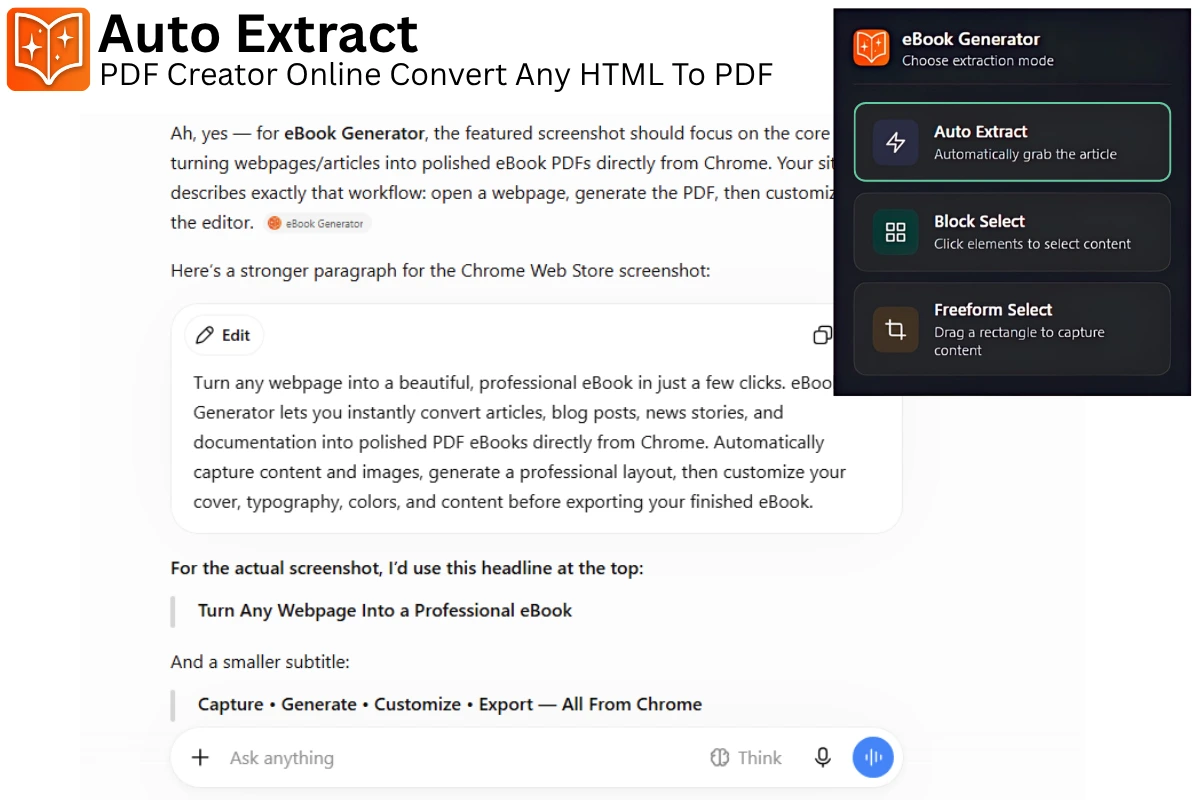
This is where the quality of your final document is determined. For example, eBook Generator offers a few different ways to approach web content. If you want the entire article without any sidebars or menus, an Auto Extract function can be used. This automatically identifies the main content and excludes the navigation and advertisements. - Step 4: Refine your selection for accuracy.
Sometimes, an entire article contains sections that are not relevant to you. If you are compiling research on a specific topic, you may prefer the Block Select feature, which lets you choose individual paragraphs, images, or specific sections directly from the page. This ensures you only capture the content that directly relates to your current project. - Step 5: Verify the visual layout.
For pages with complex layouts — perhaps an online lesson with sidebar notes or a visual report — a simple block selection might miss some parts. If the area you want to extract contains a mix of text and images that do not fit neatly into web “blocks,” you can use a Freeform Select option. This allows you to draw a selection around the exact area you want to capture, ensuring that your layout matches the original page. - Step 6: Convert and export.
Once you have selected the main content and confirmed the layout looks correct, export the final result as a PDF. You now have a clean document that is ready to be saved, shared, or added to your research library.
Different Needs, Different Extraction Modes
Because there is no universal layout for articles on the web, having choices in how you select content is more important than it might seem. Matching your selection method to the type of content you want to extract is the key to getting a great final document.
When to Use Auto Extract
Use the automatic function when you want the main article clean and complete with no extra fuss. This works well for blog posts, news articles, and standard editorial content. It is intended to handle the heavy lifting of removing the obvious webpage junk so you can get a straightforward document.
When to Use Block Select
Choose block selection when a page has useful content mixed with irrelevant sections. For instance, a long guide might have an introduction you already know and a conclusion you need to cite. Block Select allows you to click on these individual items so you can save only the parts you need. This is especially handy for saving specific arguments from a research page or key conversation turns from an essay.
When to Use Freeform Select
Freeform selection is your best option when the webpage layout is visual or uses columns and side-notes that don’t break down into clean blocks. If you are trying to save a diagram with its caption in an online textbook, drawing a rectangle that encompasses both elements will leave you with a finished PDF that looks exactly like the original page layout.
A Simpler Way to Turn Web Content Into PDF
Manually cleaning up a Word document after pasting content from a dozen different websites is not a productive use of your time. You end up fighting font sizes, line spacing, and leftover hyperlink formatting. You need a workflow that is designed to handle the specific challenge of saving clean main content.
This is where dedicated web-to-PDF tools prove their worth. Rather than copying and pasting text bit by bit, these tools streamline the process. One convenient option is eBook Generator. It is built to turn webpages and online content into clean, editable PDF ebooks and documents. Instead of loading a web page filled with ads into your document, you can use eBook Generator to extract only the main content you want.
Imagine you are a student collecting sources. You have a browser tab with a study from a university site. The article is exactly what you need, but the page is filled with menus and a promotional bar for a webinar. With eBook Generator, you simply input the URL. You can then use the Auto Extract feature to drop the online clutter. If the study contains a literature review you do not need, you can switch to Block Select and just pick the “Methodology” and “Conclusion” sections. You can then save these selections as your PDF. This gives you a lightweight document that is easy to annotate and highlight without the distraction of the broader website.
By giving you control over how much of the page is captured, eBOOK Generator makes it easy to create focused, professional documents. If you are turning a long tutorial into an offline guide, or if you are gathering competitive research for a report, having a clean PDF that captures the content without the code can help you work much faster.
Tips and Best Practices
To get the most out of any web extraction workflow, consider these practical tips:
- Check the page for dynamic loading. Some websites load the main content only after you scroll or click. If your extraction tool produces a file with missing sections, scroll to the bottom of the original page before you begin the conversion to ensure all elements have fully loaded.
- Preview your final document. Always check the preview before finalizing. Look out for broken images or sections that might have been missed because of a paywall or pop-up on the original page.
- Use selective extraction for better organization. It is often better to create several smaller PDFs with only the necessary content than to save one giant webpage file. Shorter files are easier to search, email, and file away in folder structures.
- Include the source URL in your notes. When you are creating a PDF for research, it is good practice to copy the original link into your document reader or notes app. This preserves the metadata if you need to cite the source later.
- Be careful with copyrighted material. Extracting content is great for personal reading, research, or study. If you plan to distribute the content or use it for commercial purposes, make sure you have the right to do so and always link back to the original source when appropriate.
Common Mistakes to Avoid
Even with the right tools, several common errors can ruin a PDF extraction. By keeping them in mind, you can avoid losing work or ending up with unusable PDFs.
Mistake 1: Ignoring the page structure.
Most extraction tools rely on seeing standard HTML tags to determine what is the main content. If an article is embedded in a PDF viewer on the website, or if it is delivered via a JavaScript app, the tool may not recognize the content. In those cases, look for a print view or a plain text version of the article on the same site.
Mistake 2: Saving the wrong layout.
If you select a large section that spans multiple columns, you might end up with a PDF that rearranges text in an odd order. Use the “preview” feature in your chosen tool. If the text reads incorrectly, switch from an “Auto Extract” mode to a “Block Select” or “Freeform Select” to manually place the sections.
Mistake 3: Forgetting about images and captions.
When you copy and paste text manually, images are usually lost. If your research document needs the charts or graphs from the original article, you must use a selection method that is capable of capturing images along with the text. Auto Extract modes are usually better at this than copying and pasting plain text.
Mistake 4: Not checking the output size.
A webpage can contain many high-resolution images. When you extract the main content, the final PDF can sometimes be several megabytes in size because it includes these huge image files. If file size is a concern, consider whether you need all the images or if text-only is sufficient.
Frequently Asked Questions
What does “extracting main content” mean?
Extracting main content refers to the process of isolating the central text, images, and headings of an article from the rest of the webpage. This removes the navigation bars, related posts, ads, and other features that are not part of the core article so you are left with a clean file.
Why does the main content look different in my PDF than on the screen?
Websites are responsive, meaning they change shape based on your screen size. When you convert a webpage to PDF, the tool often reflows the text to fit the document’s standard width. This can change how images are positioned. Using a block selection method can give you more control over preserving the original layout.
Are browser extensions any better than dedicated web-to-PDF tools?
It depends on what you want to achieve. Browser extensions, like Pocket, are great for quickly viewing content later. However, they often store content in a specific app. Dedicated conversion tools allow you to have an immediate PDF file that is independent of the tool that created it. This makes sharing and storing the document easier.
Can I extract content from a page that requires a login?
This varies depending on the method. If you are using a tool that opens the URL in its own environment, you may not have access to that content because it is behind the login. You often have to copy the text manually in these cases or use official export functions if the platform provides them.
What is the difference between “reading mode” and a formal PDF extraction?
Reading mode is designed for screen reading. It often simplifies the layout to make long-form text easier to read on a device. A PDF extraction is designed to preserve the information in a portable way. PDFs can be easily shared, printed, and archived, making them ideal for research and professional use.
Conclusion
Learning to effectively extract the main content from a webpage is about more than just saving a file. It is about taking control of your information and building a reliable method to manage the overwhelming amount of content on the internet. Copying and pasting is inefficient, and sometimes you end up with documents that are just as cluttered as the webpages you wanted to save. Ultimately, you want a document that is easy to read, easy to organize, and easy to cite later.
The methods and tools discussed here provide that control. By deciding between full-page extraction and selective block selection, you can ensure that the final PDF is exactly the resource you intended to keep. If you are looking for a convenient way to manage this workflow, a tool like eBook Generator can help you capture the exact text and images you need without saving the clutter that surrounds them. Turning useful web content into a clean document removes friction from your research and archiving process, leaving you with more time to actually read and use the valuable information you find.