
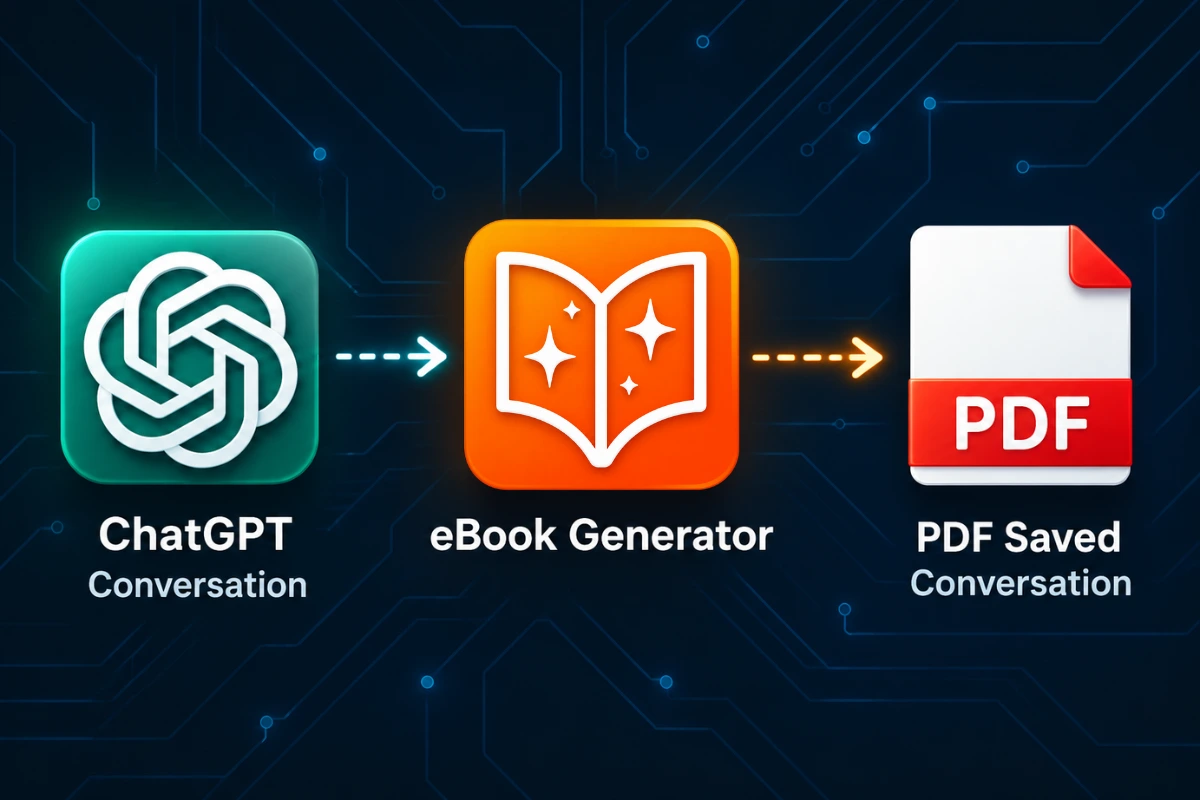
ChatGPT has become an essential tool for drafting ideas, planning projects, and gathering information. But those conversations live inside a chat window, which makes them difficult to reference later, share with colleagues, or organize into a personal knowledge base. If you have ever scrolled through a long thread looking for a specific answer, you already understand the problem. Saving a ChatGPT conversation as a PDF gives you a portable, permanent record that you can store, annotate, and distribute without needing an internet connection.
This guide walks through the practical options for converting your ChatGPT conversations into clean PDF documents. You will learn how to save chats directly through OpenAI’s interface, how to use browser-based methods for more control, and how to handle long conversations without losing important formatting. By the end, you will have a reliable workflow for preserving your AI conversations exactly the way you need them.
Why Save ChatGPT Conversations as PDF Files
ChatGPT conversations often contain valuable material that deserves more than a temporary spot in a browser tab. Saving them as PDFs creates a stable file format that remains unchanged across devices, operating systems, and software versions. Unlike copying and pasting into a word processor, a PDF preserves the structure of the conversation, making it easier to follow the back-and-forth flow between you and the AI.
The benefits extend beyond simple archiving. Researchers use saved conversations to document their methodology when exploring AI-generated content. Content creators turn successful prompt-and-response pairs into reference documents. Students capture explanations of complex topics for offline study. Professionals maintain records of brainstorming sessions and planning discussions. In each case, the PDF format offers a universal solution that works whether you are sharing the file with one person or distributing it to a wider audience.
Method 1: Using ChatGPT’s Built-In Share Feature
The quickest approach starts within ChatGPT itself. OpenAI provides a share function that generates a public link to your conversation. While this produces a webpage rather than a file, you can combine the share feature with your browser’s print function to create a PDF.
Step-by-Step Process
- Open your conversation: Navigate to the chat you want to save and review the content to ensure it is complete.
- Click the share icon: Look for the share button near the top of the chat interface. Select “Share link” to generate a public URL for the conversation.
- Open the shared link: Click “Copy link” and paste it into a new browser tab.
- Use the browser print function: Press Ctrl+P (Windows) or Cmd+P (Mac) to open the print dialog.
- Select “Save as PDF”: In the destination menu, choose “Save as PDF” or “Microsoft Print to PDF” depending on your browser.
- Customize the layout: Adjust margins and disable headers and footers to avoid clutter.
- Save the file: Click “Save” and choose a location on your computer.
This method works well for short conversations that you need to capture quickly. However, the output includes the ChatGPT interface elements, such as buttons and navigation bars, which can make the document look cluttered. For longer or more important conversations, you may prefer cleaner options.
Method 2: Copying and Formatting in a Word Processor
If you want full control over the final document’s appearance, copying the conversation manually into a word processor is a reliable alternative. This approach gives you the ability to remove unwanted content, adjust fonts, and add your own annotations before exporting the final PDF.
Steps for a Clean Document
- Select the conversation content: Click at the beginning of the chat, scroll to the end while holding Shift, or use Ctrl+A after clicking inside the conversation area.
- Copy the text: Press Ctrl+C (Windows) or Cmd+C (Mac).
- Paste into Google Docs or Microsoft Word: The conversation will paste with basic formatting preserved.
- Clean up the layout: Remove extra spacing, adjust headings to distinguish between your prompts and ChatGPT’s responses, and delete any content you do not need.
- Export as PDF: In Google Docs, go to File → Download → PDF Document. In Microsoft Word, go to File → Save As and select PDF.
This method excels when you want to combine multiple conversations into a single document or when you need to edit the content before saving. The trade-off is time. Manually cleaning a long conversation can take several minutes, especially if the chat contains code blocks, lists, or other formatted elements that do not transfer cleanly.
Method 3: Browser Extensions for One-Click Saving
Several browser extensions are designed specifically for capturing web content as PDFs. These tools range from simple screenshot generators to more advanced scrapers that extract only the main content of a page.
For ChatGPT conversations, extensions that offer “reader mode” or main-content extraction work best. They strip away sidebars, menus, and chat interface buttons, leaving only the core conversation text. Popular options include extensions that let you customize the output size, toggle images on and off, and adjust the page layout before generating the PDF.
When choosing an extension, consider how it handles dynamic content. ChatGPT updates parts of the page as you scroll, so the extension must be able to capture the full conversation even if it extends beyond the visible viewport. Extensions with a “capture entire page” feature are essential for longer chats.
Method 4: Printing Directly from ChatGPT
You can also print a conversation directly without using the share link. This method keeps you inside the ChatGPT interface and works with any browser.
What to Do
- Open the conversation: Scroll to the beginning of the chat so the full history loads.
- Open the print dialog: Use Ctrl+P or Cmd+P.
- Disable background graphics: In the print settings, look for an option to remove background graphics. This reduces the visual noise from the chat bubbles.
- Select a PDF destination: Choose “Save as PDF” and adjust margins if needed.
- Review and save: Preview the document to ensure all messages are included, then save.
Direct printing is convenient because it does not require any extra tools. The main downside is that page breaks often fall in awkward places, splitting a single response across two pages. You also end up with the ChatGPT interface styling, which many people find distracting in a saved file.
Comparing the Common Methods
| Method | Best For | Advantages | Limitations |
|---|---|---|---|
| ChatGPT Share + Print | Quick saves of short conversations | Fast, no extra tools required | Includes interface elements, less control over formatting |
| Copy to Word Processor | Editing before saving | Full control over layout and content | Time-consuming for long conversations |
| Browser Extensions | Regular saving of web content | One-click operation, customizable output | May struggle with dynamic pages |
| Direct Print | No-tool quick exports | Simple and accessible | Awkward page breaks, interface clutter |
The right method depends on your specific needs. If you rarely save conversations, a direct print or share link is sufficient. If you save conversations regularly for professional or academic work, investing time in a cleaner workflow will pay off.
A Simpler Way to Turn ChatGPT Content Into a Clean PDF
Manual copying and browser extensions both have their place, but they share a common weakness: they treat the ChatGPT conversation as a standard webpage. In reality, a ChatGPT chat is a rich document with alternating prompts, responses, code snippets, and sometimes embedded images. Capturing all of that cleanly requires more than a simple print command.
For users who regularly save AI conversations, a dedicated web-to-PDF tool offers a more consistent result. eBook Generator is designed to handle exactly this type of content. Instead of copying text into a blank document, you capture the conversation directly from the browser and convert it into a polished PDF.
One of the most useful features for ChatGPT users is Auto Extract. This option automatically identifies the main content of the conversation while excluding navigation menus, chat sidebar elements, and other interface clutter. The result is a PDF that reads like a clean transcript rather than a screenshot of the ChatGPT website.
If you only need part of a long conversation, Block Select lets you choose specific paragraphs, code blocks, or individual responses. You can build a PDF containing only the exchanges that matter rather than exporting the entire thread. This is particularly useful when you have a long research session but only need the final conclusions.
For visually organized content, Freeform Select allows you to draw a box around a specific area of the page. This works well when your conversation includes charts, diagrams, or mixed layouts that do not fit neatly into individual blocks.
Once you have captured the content, you can organize the pages, adjust the layout, and export the final document as a PDF ready for sharing or archiving.
Tips and Best Practices
Getting a well-formatted PDF requires attention to a few details. These practices will help you avoid common frustrations.
- Use conversation titles: Before saving, give your chat a descriptive title. The title appears in the document metadata and makes the PDF easier to identify later.
- Break up very long conversations: ChatGPT allows extremely long chats, but a single PDF exceeding 50 pages becomes unwieldy. Consider exporting thematically distinct sections separately.
- Check for code formatting: Code blocks often lose indentation when copied. Review any code sections in your final PDF before distributing it.
- Include the date: Add the date of the conversation to the beginning or end of your document. AI outputs change over time, and the date provides useful context.
- Create a filing system: Saving a PDF is only useful if you can find it later. Use a consistent naming convention like topic-date and store related conversations in the same folder.
- Strip unnecessary context: If you saved a conversation while troubleshooting, the early wrong answers may not be useful. Remove them before creating the final PDF.
- Review the preview before saving: Most PDF-saving methods offer a preview screen. Use it to check for corrupted images, missing text, or awkward page breaks before committing to the file.
Common Mistakes to Avoid
Even with a straightforward process, it is easy to produce a PDF that falls short of what you need. These mistakes appear frequently and are entirely preventable.
Mistake 1: Forgetting to load the full conversation. ChatGPT only loads a portion of the conversation initially. If you print before scrolling through the entire chat, your PDF will be incomplete. Always scroll to the bottom to ensure the full history is loaded.
Mistake 2: Ignoring page-break placement. A PDF that splits a response in the middle forces the reader to jump across pages. Check the placement of page breaks and adjust margins or font size to keep responses together.
Mistake 3: Relying solely on screenshot tools. Screenshot extensions capture only what is visible on the screen. For long conversations, this produces dozens of images that are impossible to search or edit effectively.
Mistake 4: Saving without a clear purpose. Before creating a PDF, consider how you will use it. A reference document for personal use does not need the same level of formatting as a PDF you plan to share with colleagues or clients.
Mistake 5: Neglecting to edit content. ChatGPT conversations often contain repetitive phrasing or irrelevant tangents. Do not treat the raw export as final. Spend a few minutes removing content that does not contribute value.
Frequently Asked Questions
Can I save a ChatGPT conversation as a PDF on my phone?
Yes. The mobile ChatGPT app includes the same share functionality as the web version. Generate a share link, open it in your mobile browser, and use the browser’s print-to-PDF feature. The process works on both iOS and Android devices.
Do saved PDFs include images from the conversation?
It depends on the method you use. Copying and pasting typically loses images. Saving via the browser print function preserves images that are fully loaded on the page. Tools that extract main content usually include images if you choose the appropriate settings.
Is there a limit to how long a ChatGPT conversation I can save?
There is no hard limit imposed by ChatGPT itself. The constraint comes from your saving method. Browsers may struggle with very long pages, and word processors can slow down when handling massive amounts of text. For extremely long Conversations, split them into smaller sections before exporting.
Can I edit a PDF after saving the ChatGPT conversation?
Standard PDFs are not easily editable. If you anticipate making changes, save the conversation in an editable format first, such as a Word document or Google Doc, before converting to PDF. Alternatively, capture the content with a tool that allows adjustments during the conversion process.
Why does my saved PDF look different from the ChatGPT conversation?
Formatting differences occur because ChatGPT uses a web-based layout that does not translate perfectly to printed pages. Fonts, spacing, and colors may change. The best way to control the final appearance is to capture the content and then apply your own formatting preferences before exporting.
What is the best way to save a ChatGPT conversation for offline reading?
For offline reading without any need for editing, the share-and-print method works well. If you want a cleaner reading experience without browser interface elements, a content-extraction tool is the better choice because it focuses on the conversation itself.
Conclusion
Preserving your ChatGPT conversations as PDFs transforms temporary chat sessions into lasting resources. Start with the simplest method that meets your needs, whether that is a quick browser print or a more deliberate copy-and-format workflow. As you save more conversations, you will develop preferences for how you want the final documents to look and function.
If you find yourself saving AI conversations regularly, moving away from manual copying will save you significant time. A web-to-PDF tool gives you consistent output with less effort, especially when you need to exclude interface clutter or select only part of a longer thread. When you are ready to build a reliable archive of your ChatGPT work, try eBook Generator and create PDFs that are clean, organized, and ready for whatever you need them to do.