
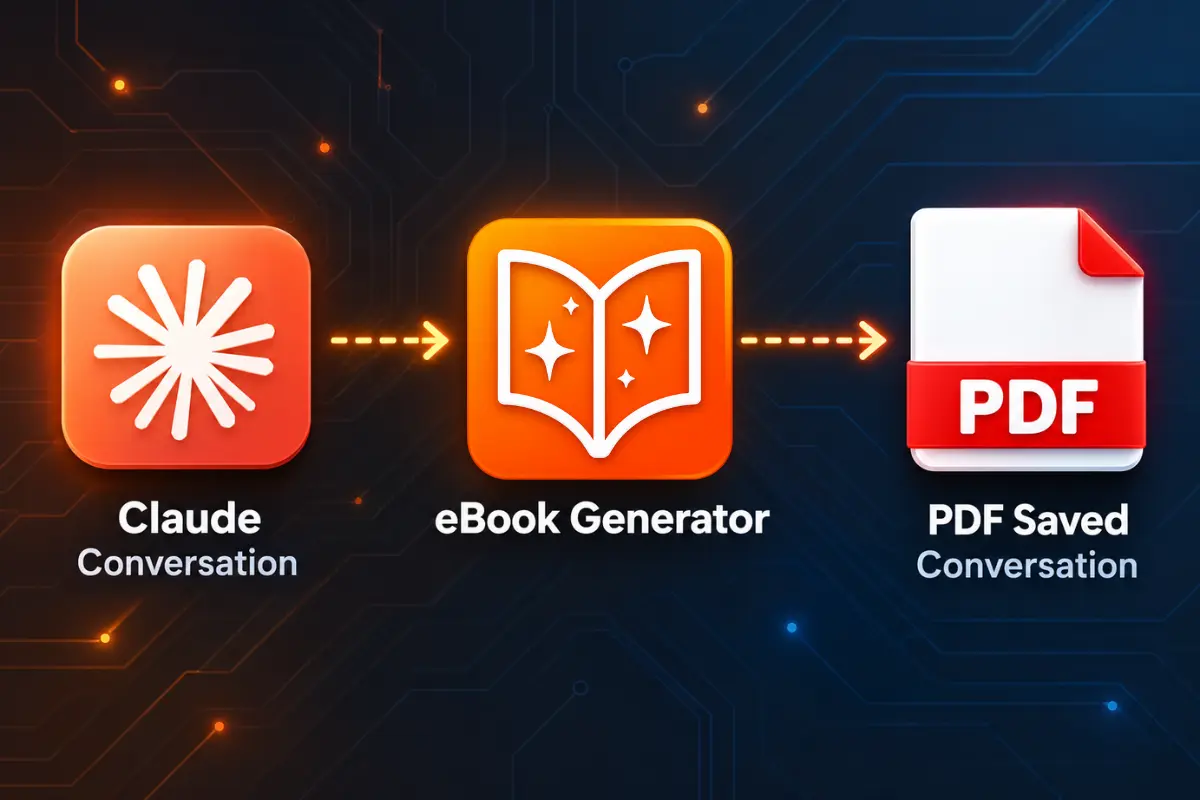
Claude conversations often contain some of your best thinking. Whether you have been brainstorming a business plan, refining a writing project, or working through a complex technical problem, the exchange you had with Claude can become a valuable reference document. The challenge is that those conversations live inside a chat interface, where they are difficult to organize, share, or read later in a comfortable format.
The solution is to turn a Claude conversation into an ebook PDF. A well-formatted PDF gives you a permanent, portable copy of your work. You can read it on any device, share it with collaborators, or keep it as a personal knowledge archive. This guide walks through the practical steps for converting a Claude conversation into a professional, clean PDF that is actually pleasant to read.
Why Convert a Claude Conversation to PDF?
Claude’s interface is excellent for having conversations, but it is not designed for long-form reading or document archival. Once a conversation grows beyond a few dozen exchanges, it becomes unwieldy. Scrolling back through a lengthy chat history to find a specific insight or a particular code snippet is time-consuming and frustrating.
Creating a PDF solves several problems at once. A PDF gives you a stable snapshot of the conversation at a specific point in time, which is useful when you want to preserve a final version of a project. It also lets you read the content away from your computer, on an e-reader or tablet, without distractions from notifications or other browser tabs. For professional contexts, a PDF is also a shareable document that looks intentional rather than like a casual chat log.
There are also creative uses for this workflow. The content you generate with Claude can serve as source material for articles, guides, or even digital products. A conversation where you developed a framework, outlined a course, or drafted a series of tips can become the foundation of a document that others can use.
What Makes a Good Claude-to-PDF Conversion
Not all PDFs are created equal. A raw copy-paste of a conversation into a text editor produces a PDF that is difficult to follow. The exchange structure gets lost, code blocks become garbled, and the visual rhythm of the document is monotonous.
Several factors determine the quality of the final PDF:
- Readable formatting: Proper headings, spacing between messages, and a clear visual distinction between your questions and Claude’s responses make the document much easier to scan.
- Preserved structure: Code blocks, lists, and tables need to survive the conversion intact. These elements are often the most valuable parts of a conversation.
- Clean presentation: Removing chat interface elements, timestamps, and other UI artifacts produces a document that looks professional rather than like a screenshot.
- Selectable text: The PDF should contain actual text, not images, so you can search within it and copy passages for later use.
When these elements are handled well, the resulting PDF feels less like an exported chat session and more like a well-structured document you created intentionally.
Method 1: Manual Copy and Paste
The simplest approach is to manually copy the content from Claude and paste it into a word processor or Google Docs document. This method works, but it comes with significant friction, especially for longer conversations.
Start by scrolling through your conversation and selecting the messages you want to include. Copy each section and paste it into your document. You will need to manually format the text, deciding how to distinguish your prompts from Claude’s responses. You might use bold for your questions, standard text for answers, and a monospace font for code.
This approach gives you complete control over the final layout, but it is time-consuming. A conversation with forty or fifty exchanges could take over an hour to format properly. It is also prone to errors, such as accidentally skipping a message or copying the same section twice. For quick one-off documents, this method is fine. For regular workflows, it becomes tedious quickly.
Method 2: Browser Print Function
Your browser’s built-in print-to-PDF feature can capture the entire Claude conversation as it appears on screen. Open the conversation, press Ctrl+P (or Cmd+P on Mac), choose “Save as PDF” as the destination, and you have a PDF file.
This method is fast, but the results are often poor. The PDF includes all the interface elements that appear on the page: the sidebar, the input box, and any other UI components. The conversation itself is squeezed into a narrow column, making the text feel cramped. Code blocks may wrap awkwardly, and long conversations can produce dozens of pages with significant white space. You also end up with a document that looks like a screenshot of a webpage rather than a polished document.
Another significant challenge with the print method is handling long conversations. Claude will only load a certain number of messages at a time. If your conversation is extensive, the print function may only capture the currently visible messages, leaving out earlier parts of the exchange. You would need to scroll to the top of the conversation and wait for previous messages to load before printing, and even then, the pagination can be unreliable for very long threads.
Method 3: Using a Dedicated Conversion Tool
For a more efficient workflow, a web-to-PDF tool can handle the conversion process automatically. Instead of manually formatting content or accepting the limitations of your browser’s print function, you can feed the Claude conversation URL into a tool designed specifically for turning web content into clean documents.
This is where eBook Generator fits into the process. It is designed to take web-based content, including AI conversations, and convert it into a well-structured PDF document.
The advantage of this approach is that the tool handles the technical details of content extraction and formatting. You do not need to worry about missing messages, broken code blocks, or unwanted interface elements. The focus stays on the content itself, which is exactly where your attention should be.
A Simpler Way to Turn Your Claude Conversation Into a Polished PDF
When you want to turn a Claude conversation into an ebook PDF without spending hours on manual formatting, eBook Generator provides a practical workflow.
Instead of copying and pasting each message or tolerating cluttered browser exports, you can use the tool to capture the conversation content and generate a clean, structured document. The tool is designed to handle the challenges of converting interactive web content into a static, readable format.
Here is how the process works:
- Access your conversation: Open the Claude conversation you want to convert in your browser.
- Prepare the content: Make sure the conversation is fully loaded and that you have scrolled through to ensure all messages are available. This is particularly important for long conversations where Claude may load messages in batches.
- Use the extraction feature: eBook Generator can automatically identify the main content of the page, filtering out navigation menus and other interface clutter. This is useful when you want to capture the entire conversation without extraneous elements.
- Select specific sections when needed: If you only need certain parts of the conversation rather than the whole exchange, the block selection feature lets you choose individual messages or sections. For example, you might want only the final summary Claude gave you, or the code examples from the middle of the conversation.
- Generate and download: Once you have your selection, the tool converts it into a PDF that you can download immediately.
This approach is particularly helpful when you create these documents regularly. Researchers, writers, and developers who routinely use Claude for extended work sessions find that having a streamlined conversion process saves them significant time on each project.
The PDF format is also ideal for archiving. You can organize your converted conversations into folders, naming each file by project or date, creating a searchable library of your work with Claude. This turns ephemeral chat sessions into a permanent knowledge base.
Structuring Your Ebook PDF for Maximum Usefulness
Simply converting the conversation is only the first step. To make the resulting document genuinely valuable, consider how you structure it before you convert.
If you plan to use the PDF as a reference document, think about the conversation’s natural sections. A long conversation about building a website, for example, might have distinct phases: requirements gathering, design decisions, code implementation, and testing strategies. If you intend to use the conversation as source material for an article or guide, you will want to organize the content into coherent topics rather than presenting it as a raw chat log.
One effective approach is to use Claude’s own summarization capabilities before you convert. Ask Claude to provide a structured summary of your conversation, with clear headings and bullet points covering the main takeaways. You can then use that summary as the basis for a much cleaner document, or combine the summary with the full conversation text for a comprehensive reference.
For shorter conversations that cover a single topic well, the raw format can work fine. The key differentiator is how the content is formatted in the PDF. Clear separation between user messages and Claude responses, preserved code formatting, and a readable font make an enormous difference in how useful the final document feels.
Tips and Best Practices
These practices will help you get better results when converting Claude conversations to PDF:
- Break up very long conversations: If your conversation is exceptionally long, consider asking Claude to summarize key sections before you export. This keeps the PDF focused and reduces its size significantly.
- Review your conversation before conversion: Skim through the conversation to ensure there are no embarrassing typos, incomplete thoughts, or content you would rather not preserve in a permanent document.
- Check code blocks carefully: Code is the most fragile element during any conversion process. After generating your PDF, verify that code samples are complete and properly formatted, especially if you plan to reference them later.
- Use descriptive file names: Name your PDFs with enough detail to identify them later. A file called “Claude-conversation-1.pdf” becomes useless once you have a dozen such files.
- Create a consistent folder structure: If you convert conversations regularly, organize them by project, date, or topic so you can find what you need when you need it.
- Consider combining related conversations: If you had multiple Claude conversations about the same project, you might combine the most valuable parts of each into a single, comprehensive PDF.
- Use Claude to structure your content: Before exporting, ask Claude to reorganize the key information into outlines, summaries, or tables. This markup will translate into a more useful PDF.
Common Mistakes to Avoid
Several common pitfalls can undermine your PDF conversion efforts. Being aware of them will save you time and frustration.
Mistake 1: Forgetting to load the full conversation history. Claude does not always display the entire conversation at once. If you export without scrolling through and loading older messages, your PDF will be incomplete. Always verify that you can see the whole conversation before starting the conversion process.
Mistake 2: Ignoring formatting issues in code blocks. Code is particularly vulnerable during conversion. Indentation can be lost, line breaks can appear in the wrong places, and special characters can be mangled. Always spot-check any code examples in your final PDF.
Mistake 3: Using a low-quality export method. A browser screenshot or a simple copy-paste produces a document that is difficult to read and looks unprofessional. The time you save in conversion is lost when you struggle to use the document later.
Mistake 4: Including irrelevant conversation segments. Not everything you discuss with Claude is worth preserving. If a conversation wanders off-topic or contains experimental ideas you have decided not to pursue, remove those sections before creating your final PDF. A shorter, focused document is more valuable than a comprehensive but cluttered one.
Mistake 5: Not proofreading the final document. The PDF is your permanent record. Read through it once after conversion to catch any obvious issues with layout, truncated text, or missing content. This review takes just a few minutes and prevents later surprises.
Frequently Asked Questions
Can I convert a Claude conversation to PDF for free? Yes, there are several free options. You can use your browser’s print function or copy and paste the content into Google Docs. For a more automated workflow with better formatting, eBook Generator offers a free tier that handles web-to-PDF conversion.
How do I save a Claude conversation as a PDF on a Mac? On a Mac, you can use the print dialog from your browser and select “Save as PDF” as the destination. For a cleaner result with better formatting control, using a dedicated web-to-PDF tool will produce a more professional document.
What is the best way to preserve code formatting in a Claude PDF? The browser’s default print function often mangles code. A dedicated conversion tool that preserves HTML elements will generally do a better job of maintaining code structure. After conversion, always verify that indentation and line breaks are correct in your code samples.
Can I convert only part of a Claude conversation? Yes. Instead of exporting the entire conversation, you can select specific sections. Some conversion tools allow you to select individual blocks of content from a page, which is useful when you only need particular messages or responses.
Is it legal to use the PDF for commercial purposes? This depends on your use case and the platform’s terms of service. Generally, content you create with Claude belongs to you, but it is worth reviewing the applicable terms, especially if you plan to sell the content or use it extensively in commercial projects. When in doubt, consult the terms or seek professional advice.
Conclusion
Turning a Claude conversation into an ebook PDF is a straightforward process once you know the right workflow. The most basic methods, such as manual copying or using your browser’s print function, get the job done but leave room for improvement in terms of formatting and usability.
For a cleaner, more efficient approach, dedicated conversion tools simplify the process considerably. When you value your time and want documents that look professional, eBook Generator offers a way to convert your Claude conversations into polished PDFs without the manual grind of copying, pasting, and formatting content yourself.
The next time you have a productive session with Claude, do not let the insights fade into your chat history. Convert the conversation into a PDF, save it to your reference library, and make that knowledge work for you long after the chat window has closed.