
Jump To Solution
Have you ever found useful information online, only to lose it later when the page changed, disappeared, or became inaccessible? You are not alone. Millions of people need to capture webpages as PDFs for research, work, study, or record-keeping. The challenge is that most methods produce messy results—ads, navigation menus, and sidebars all get baked into your document.
The good news is that capturing any part of a webpage as a PDF is easier than you think. Whether you want to save an entire article, a handful of paragraphs, or a specific visual section, there are practical methods to get exactly what you need. This guide explores the different ways to capture web content as PDF files. You will learn manual browser techniques, specialized tools, and which approach works best for different situations.
By the end, you will have a reliable workflow for preserving online content in clean, portable PDF documents. Let’s get started.
Why You Might Need to Capture Web Content as a PDF
Webpages are temporary by nature. They get updated, redesigned, or removed entirely. PDFs are permanent, portable, and readable across every device. That combination makes PDF capture valuable in many everyday situations.
Here are the most common reasons people save web content as PDF files:
- Offline reading: You are traveling, commuting, or simply do not want to be distracted by other browser tabs.
- Research and citations: An academic article or online resource may not be permanently available. Saving a PDF version ensures you have the original content for later reference.
- Professional documentation: You want a clean record of a webpage for a client report, legal matter, or compliance requirement.
- Content distribution: Sharing a webpage with someone who lacks a reliable internet connection becomes easy when the content is packaged as a PDF.
- Personal productivity: Creating organized digital files from frequently visited websites helps you build a personal knowledge library.
The real question is not whether you need this skill, but which method gives you the cleanest result without wasting your time.
Understanding Your Options for Saving Webpages as PDF
There are several ways to convert webpage content into a PDF. Each option has strengths and weaknesses. Your choice depends on how much of the page you need and how clean the final document must be.
1. Browser Print-to-PDF: The Built-in Option
Every major browser—Chrome, Firefox, Edge, and Safari—includes a print-to-PDF feature. It works by using the print dialog to render the current page as a PDF file instead of sending it to a physical printer.
To use it:
- Open your browser’s print dialog: Usually accessible via Ctrl+P (Windows) or Cmd+P (Mac).
- Choose “Save as PDF” as the destination in the print options.
- Customize the print settings: Many browsers let you disable headers and footers, adjust margins, or remove background graphics.
- Select the pages you need: You can choose “All pages” or enter a custom page range.
- Click Save: Choose a destination folder and save the file.
This method is fast and requires no extra software. However, the layout of the final PDF often resembles a “screenshot-like” printout of the page. Ads, navigation menus, and unrelated elements frequently appear. If the webpage is long, you get many pages full of clutter. That makes this option less ideal when you need a clean, readable document.
2. Browser Extensions: Quick but Inconsistent
Browser extensions such as “Save as PDF” or “Webpage to PDF” attempt to strip ads and simplify the page before converting it. These tools can be convenient for quick saves, but their performance varies significantly:
- Some extensions inject ads of their own into the final PDF.
- Several struggle with dynamic content or paywalled pages.
- Quality is inconsistent across different websites and page designs.
- Privacy-conscious users may prefer not to send web page content to third-party servers.
If your needs are occasional and you do not mind some variability, a browser extension might be sufficient. For regular work where output quality matters, dedicated tools usually deliver better results.
3. Copy-and-Paste into a Document Editor
You can manually copy text from a webpage and paste it into Word, Google Docs, or another editor. Then you format the content and export it as a PDF.
This method gives you complete control over the final document. You can edit the content, reorganize sections, adjust formatting, and add your own headings. For short excerpts, this is a practical approach.
The downside is that it becomes tedious for longer content. Manually copying every section, preserving headings, and handling images takes significant time. Articles with many images or complex layouts become difficult to reproduce accurately.
Comparison of Common Methods
| Method | Best For | Advantages | Limitations |
|---|---|---|---|
| Browser print-to-PDF | Quick saves of simple pages | No extra tools required; works everywhere | Includes page clutter; limited layout control |
| Browser extensions | Occasional captures | Convenient; one-click operation | Inconsistent quality; potential privacy concerns |
| Copy-paste into word processor | Short excerpts or edited documents | Full control over editing and formatting | Time-consuming for long content; loses images |
| Dedicated web-to-PDF tools | Frequent, professional captures | Clean output; content selection options | Requires selecting the right tool |
How to Capture Specific Sections of a Webpage
Often you do not need the entire page. You may only want a few key paragraphs from a long article, an important section from a research report, or a specific chart with its surrounding text. Here are methods for targeted capture.
Using Browser Extensions with Selection Features
Some browser extensions allow you to select a portion of a page before converting it to PDF. You highlight the text you want, right-click, and choose an option like “Save selected text as PDF.” This works well when the content is entirely text-based.
Images can complicate this method because selection often excludes image files. If your section contains both text and an important image, you may need to save them separately.
Screenshot Tools for Visual Sections
For visually defined areas—charts, infographics, tables, or specific webpage segments—screenshot tools are effective. Native operating system tools like Windows Snip & Sketch or macOS Screenshot capture regions of your screen. From there, you save the image directly or insert it into a document that you later export as a PDF.
While useful, screenshots produce image files, not searchable text. If someone needs to search for words inside the captured content, a text-based PDF is more practical.
Step-by-Step Guide to Capturing Any Part of a Webpage as a PDF
This workflow walks you through the most practical approach for saving webpage content with minimal hassle and maximum control over the output.
- Step 1: Open the webpage and review the content you want. Identify the sections you need. Look at the page structure to understand which paragraphs, headings, images, or tables are relevant.
- Step 2: Expand any collapsible sections. If the page uses accordions, tabs, or “read more” buttons, open everything you want to capture before starting the PDF process. Otherwise, you may capture an unexpanded version of the content.
- Step 3: Choose your capture method based on the content volume. For a quick full-page save, browser print-to-PDF works. For curated content or professional documents, use a dedicated web-to-PDF tool that lets you select specific sections.
- Step 4: Configure the output settings. Set margins, enable background graphics if you need them, and include page numbers when necessary. Disable headers and footers unless you require them.
- Step 5: Generate and inspect the PDF. After conversion, review the file to confirm that all necessary content is present and that no unwanted elements remain. Repeat the process if any sections are missing.
- Step 6: Name and organize the file. Use a descriptive file name that helps you locate the PDF later. Save it in a folder structure that supports regular retrieval.
Selecting the Right Content: Three Effective Methods
The most significant difference between decent and excellent PDF capture is your ability to control what parts of the webpage enter the document. Manual selection means no unwanted clutter and no missing important sections.
Many web-to-PDF conversion tools now offer several content-capture methods. Each one serves a different purpose.
Auto Extract for Whole Articles
When you need the entire main article or blog post without the surrounding page clutter, automatic extraction is your best option. It identifies the core content and excludes navigation menus, advertisements, and irrelevant page elements.
Auto Extract is useful when:
- Saving a full tutorial or how-to guide
- Converting a complete blog post into a PDF for offline reading
- Creating a clean PDF from a research article or educational resource
- Preserving long-form journalism without sidebar distractions
Block Select for Individual Sections
Block Select lets you choose specific chunks of content directly from the page. You can pick individual paragraphs, images, or conversation blocks that are relevant. This selection method is perfect when only part of a long page matters to you.
Use Block Select when:
- You are extracting key research findings from a detailed report
- You want to collect specific tips from several different articles
- You are saving targeted sections of your own web analytics dashboard
- You only need the conclusion and recommendations from a long case study
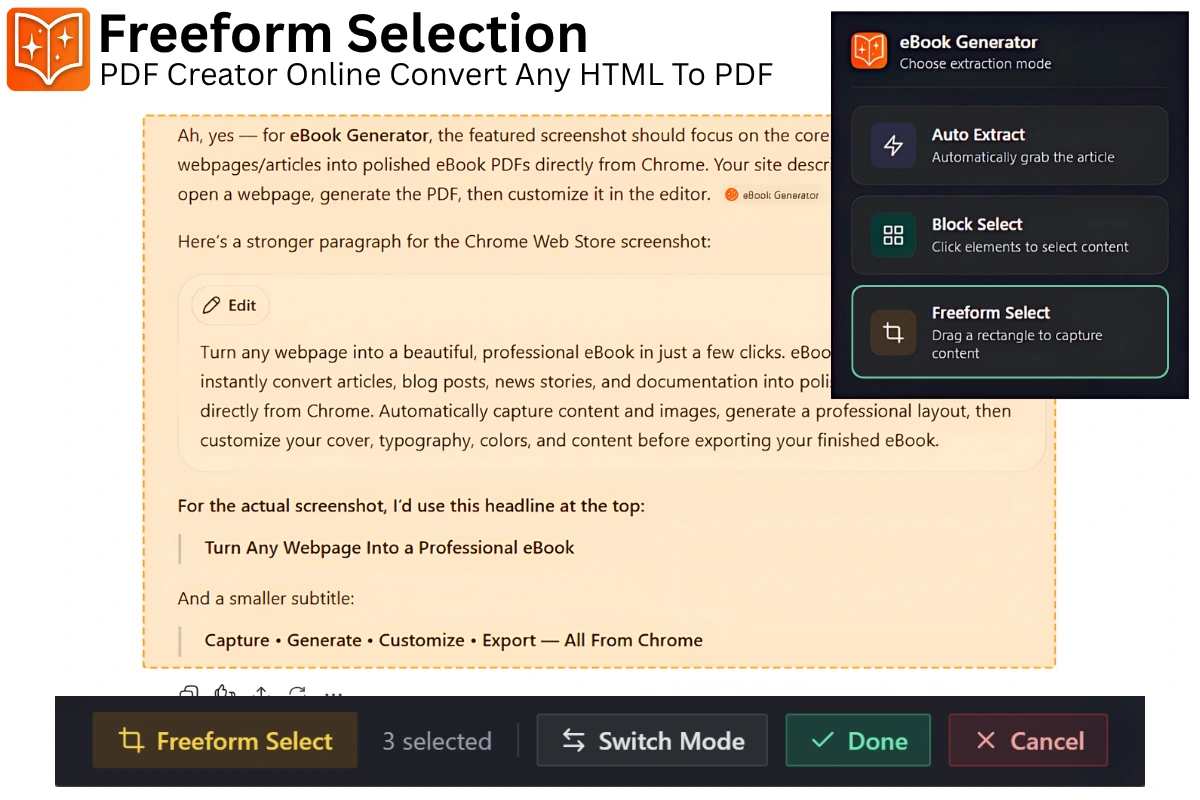
Freeform Select for Visually Defined Areas
Freeform Select allows you to draw a selection around the exact area you want to capture. It works well when the content you need is visually defined but includes multiple elements such as text, images, charts, and diagrams inside one confined area.
Consider Freeform Select when:
- Capturing a product detail box that includes an image, price, and description
- Saving a comparison table with surrounding explanatory text
- Selecting a dashboard widget with graphs and summary data
- Capturing a styled callout box or quote block
A Simpler Way to Turn Web Content Into PDF
After trying the manual methods, you have probably noticed a pattern: dedicated tools that give you control over what gets captured are far more efficient.
This is where eBook Generator enters the workflow. It provides the three capture methods mentioned above in one clean interface. Instead of dealing with browser quirks or pasting content into a document editor, you can directly turn web content into structured PDF documents.
The process is straightforward:
- Open the webpage you want to capture.
- Choose your capture method: Auto Extract for the full article, Block Select for specific sections, or Freeform Select for a visually defined area.
- Generate the document: The content is converted into a PDF that keeps the original layout, images, and text intact.
- Edit and refine: You can adjust the document before finalizing it, making it suitable for professional use.
For example, suppose you are researching competitors for a business plan. You find a detailed market analysis with an important chart on page three but that page also has ads and an unrelated video embedded in it. Using Block Select, you capture the chart and its explanatory paragraph. You then export a clean PDF that you can share with your team or include in your strategic report.
Tips and Best Practices
Getting the best results from webpage-to-PDF capture requires attention to a few details. Here are practical recommendations that make a noticeable difference.
- Set the right viewport width before capturing mobile-responsive pages: If you are capturing a page that shows different content on mobile devices, ensure your browser window is wide enough to display the desktop version before initiating the capture. Some responsive designs hide content on narrower screens.
- Check page breaks in the resulting PDF: A webpage with long sections such as code blocks or large tables may generate awkward page breaks that separate text from its heading. Review the PDF and adjust the source content if necessary.
- Decide whether you need background colors and images before starting: Some PDF creators omit background elements by default. If the webpage relies on colored boxes or background imagery to convey meaning, you will want those enabled.
- Use a consistent file naming convention: Organization is easier when you name your PDF files consistently. Include the date, page title, and a short descriptor such as 2025-01-15_market-analysis_report.pdf
- Verify that dynamic pages contain the content you expect: Web pages that load content with JavaScript may not display everything in PDF capture tools. If you see missing sections, scroll through the entire page before capturing or use the browser’s print-to-PDF function as a fallback for dynamic elements.
- When you only need text information, select it directly: If images are irrelevant and the text is straightforward, copying the text into a word processor or using a text-focused capture tool will produce smaller, more readable files than exporting image-heavy pages.
Common Mistakes to Avoid
Certain errors occur again and again when people attempt to capture webpages as PDFs. Knowing them in advance saves you time and frustration.
Mistake 1: Capturing without expanding the full content. Many modern websites use collapsed sections or loaded-on-scroll content. If you do not expand everything before capture, your PDF will contain incomplete information. Always scroll through the page from top to bottom first.
Mistake 2: Ignoring the layout of smooth-scrolling pages. Some websites use scroll-snapping or fixed-position elements. These can cause overlap in the captured PDF. When possible, expand the content and disable sticky headers or pop-up chats before converting.
Mistake 3: Not checking the file size. A page with many high-resolution images can produce an extremely large PDF. If you plan to email or distribute the file, look for options to compress images or reduce resolution during the conversion step.
Mistake 4: Assuming all PDFs preserve text. Screenshot-based capture creates image-only files. Text is not selectable or searchable in those PDFs. If you need to search or quote from the saved content, use a text-preserving conversion method rather than screenshots.
Mistake 5: Forgetting to check page range selections. When you use print-related methods and choose “pages 1-2” manually, you may accidentally cut off the final sections of the content. Save the entire set first, then split or remove pages if needed in a PDF editor.
Frequently Asked Questions
What is the easiest way to save an entire webpage as a PDF?
Most browsers have a built-in print-to-PDF function. Press Ctrl+P (Windows) or Cmd+P (Mac), select “Save as PDF” as the destination, and click Save. This works without installing any additional software and captures the visible webpage content as a PDF file.
Why does my PDF capture include ads and navigation menus?
Browser print functions capture the full page as rendered, including ads and menus. To exclude messy elements, you need a web-to-PDF tool that offers content selection. Auto Extract, for instance, identifies the main content area and automatically skips unrelated parts.
Can I save only a highlighted portion of a webpage as a PDF?
Yes. Several tools offer Block Select methods so you can choose individual sections to capture. You select the text, images, or content blocks you need, and the tool converts only that content to PDF. This approach works well for specific paragraphs, research findings, or important data points.
Does page layout affect PDF capture?
Absolutely. Multi-column layouts, fixed-width designs, and embedded videos all influence how content renders in a PDF. Some tools that use web-to-PDF conversion keep the original layout intact. Others reformat the text for simpler output. Choose the method based on how closely you need to preserve the original design.
Are PDF files of webpages searchable?
If you use text-based conversion, the PDF will contain searchable text. That means you can use Ctrl+F to find specific terms inside the PDF. Screenshot methods produce images without underlying text layers, making the content unsearchable.
What should I do if a webpage uses dynamic content loading?
Dynamic loading means content appears only after you scroll or interact with the page. Before capturing, make sure you scroll through the page to render everything. If the PDF still misses sections, your conversion tool may need an updated method or you may need to use the browser’s own print function as a backup.
Conclusion
Capturing any part of a webpage as a PDF is a valuable skill that saves time, supports research, and helps you build a personal archive of important online content. The approach depends on your needs. For quick saves with no extras, your browser’s print-to-PDF function works fine. For selective, clean, and professional documents, dedicated web-to-PDF tools provide superior control.
If you regularly find yourself exporting content from the web, consider a tool that gives you multiple capture styles. The ability to extract an entire article, select several focused sections, or draw around a specific visual area provides flexibility you will appreciate. Try eBook Generator and turn useful webpage content into polished PDF documents that you can edit, share, and organize with ease.